Check Image DPI/PPI
Check the DPI and true pixel resolution of any image, and see whether it will print sharply at your target size. Free, and it runs entirely in your browser — the image is never uploaded.
Add this tool to your own site
Free to embed on any site. It runs in your visitor’s browser, so no image ever reaches a server — yours or ours.
<iframe src="https://www.theimgbox.com/embed/check-dpi" width="100%" height="480" style="border:1px solid #e4e4e7;border-radius:12px" title="Image DPI checker by imgbox" loading="lazy"></iframe>Check the DPI of any image for free with imgbox to know instantly whether a photo is ready for print. This DPI checker reads the resolution metadata and pixel dimensions of your file so you can see the stored DPI/PPI value and calculate the real print size. Everything runs in your browser, so your image is never uploaded and there is no account or limit.
What DPI and PPI Actually Mean
DPI stands for dots per inch and PPI stands for pixels per inch. The two terms are often used interchangeably for digital files, though strictly DPI describes how many ink dots a printer lays down per inch, while PPI describes the pixel density of a digital image. When you check an image's DPI, you are reading the number stored in its metadata that tells a printer how large to render each pixel.
The key thing to understand is that DPI is only meaningful when an image is printed at a physical size. On a screen, DPI is largely irrelevant because displays render images by pixel count, not by inches.
The Crucial Difference: DPI Metadata vs Actual Pixel Resolution
This is the single most misunderstood point about DPI. The DPI number stored in a file is just a tag, a piece of metadata that says how big the printer should make each pixel. It does not describe how much detail the image actually has. The real detail is determined by the pixel dimensions: the width and height in pixels.
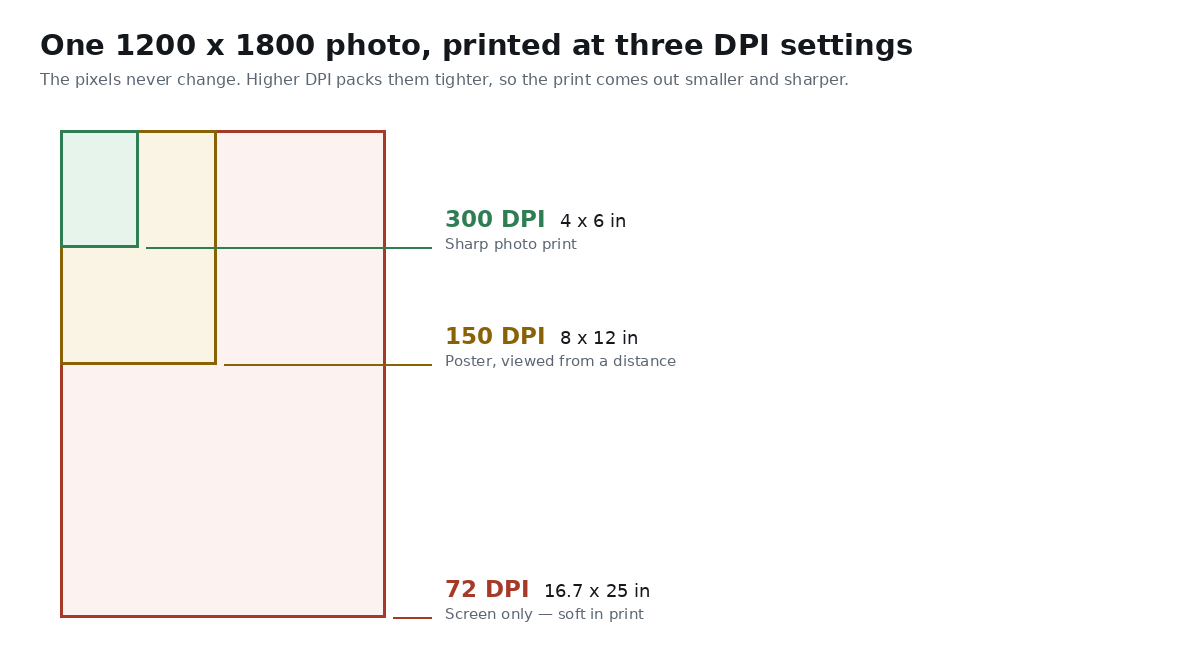
For example, an image that is 3000 by 2000 pixels contains the same amount of visual detail whether its metadata says 72 DPI or 300 DPI. Changing the DPI tag alone adds no new pixels and no new sharpness. What actually determines print quality is the pixel count divided by the print size. A file's real print resolution equals its pixel width divided by the print width in inches.
- Pixel dimensions determine how much real detail an image has
- The DPI tag only sets the intended physical print size per pixel
- 3000 x 2000 px at 72 DPI has identical detail to the same file at 300 DPI
- Real print DPI = pixel width divided by print width in inches
How many pixels each print size needs
DPI on its own tells you nothing about whether a photo can be printed — pixel count does. Divide the pixel dimensions by the print size in inches and you get the DPI you will actually achieve. This table works the other way round: it shows the pixels you need for a sharp print at each common size.
300 DPI is the standard for photo and commercial printing. 150 DPI is acceptable for posters and anything viewed from more than arm's length.
| Print size | At 300 DPI | At 150 DPI | Megapixels at 300 DPI |
|---|---|---|---|
| 4 × 6 in | 1200 × 1800 | 600 × 900 | 2.2 MP |
| 5 × 7 in | 1500 × 2100 | 750 × 1050 | 3.2 MP |
| 8 × 10 in | 2400 × 3000 | 1200 × 1500 | 7.2 MP |
| A4 (8.27 × 11.69 in) | 2480 × 3508 | 1240 × 1754 | 8.7 MP |
| 11 × 14 in | 3300 × 4200 | 1650 × 2100 | 13.9 MP |
| 16 × 20 in | 4800 × 6000 | 2400 × 3000 | 28.8 MP |
When 72, 150, 300, and 600 DPI Matter
Different outputs call for different resolutions. Knowing the target helps you judge whether an image has enough pixels for the job. Checking the DPI and the pixel dimensions together tells you the largest size you can print at good quality.
As a rule, screen work is measured in pixels and does not depend on the DPI tag, while print work does. The list below shows the common thresholds.
- 72 DPI: the traditional screen and web reference, fine for on-screen use
- 150 DPI: acceptable for large items viewed at a distance, like posters and banners
- 300 DPI: the standard for high-quality photo prints, magazines, and flyers
- 600 DPI: used for sharp line art, text documents, and professional print jobs
What each DPI value is actually for
The four numbers you will see quoted most often map to genuinely different jobs. Picking the wrong one either wastes file size or produces a soft print.
| DPI | Use it for | Not suitable for |
|---|---|---|
| 72 | Screen, web and social images | Any physical print |
| 150 | Posters, banners and signage viewed from a distance | Close-inspection photo prints |
| 300 | Photo prints, magazines, commercial printing | Nothing — this is the safe default |
| 600 | Line art, logos and text-heavy scans | Photographs, where it only inflates file size |
Print Versus Screen: Why DPI Confuses People
For anything shown on a screen, phones, monitors, websites, social media, the DPI value in the file does nothing. Screens care only about pixel dimensions. A 1920 by 1080 image fills a Full HD screen regardless of whether its tag says 72 or 300 DPI.
DPI becomes important the moment you print. A printer needs to know how many pixels to pack into each inch of paper. If you have too few pixels for the requested size, the print looks soft or pixelated. Checking DPI first tells you whether your file is print-ready or whether you need a higher-resolution source.
Common Reasons to Check Image DPI
People check DPI to avoid the frustration of ordering a print that comes back blurry. Designers verify that client-supplied images meet a print house's requirements. Sellers and photographers confirm that a photo can be enlarged to a poster without losing quality.
Because imgbox reads everything locally, you can check confidential design files and client assets without uploading them anywhere. There is no account, no watermark, and no limit on how many files you check, and it works offline once loaded.
- Confirming a photo meets a print shop's DPI requirement
- Checking whether an image can be enlarged without going blurry
- Verifying client or stock assets before placing them in a layout
- Diagnosing why a printed image came out soft or pixelated
How to Check the DPI of an Image
- Open the Check Image DPI tool at theimgbox.com.
- Drag your image onto the page or click to select a file.
- The tool reads the file locally and shows the stored DPI/PPI value.
- Note the pixel width and height reported alongside the DPI.
- Compare the pixel dimensions to your intended print size to judge quality.
- If the DPI is too low for print, use the Convert Image DPI tool to set a new value.
Frequently Asked Questions
What DPI do I need for printing?
For high-quality photo prints, magazines, and flyers, 300 DPI is the standard. Large posters and banners viewed from a distance can look fine at 150 DPI, and detailed line art or text often uses 600 DPI. Screen-only images do not need a specific DPI.
How do I check the DPI of an image?
Open the Check Image DPI tool, drop your file onto the page, and it displays the DPI/PPI value stored in the image along with its pixel dimensions. Everything is read locally in your browser with no upload.
What is the difference between DPI and pixel resolution?
Pixel resolution is the actual number of pixels in the image, which determines how much detail it holds. DPI is only a metadata tag that tells a printer how large to make each pixel. Two files with the same pixels but different DPI tags have identical detail.
Does a higher DPI number mean a better image?
Not by itself. The DPI tag does not add detail. What matters is the pixel dimensions relative to the print size. A large-pixel image at a low DPI tag can still print beautifully, while raising the DPI tag on a small image does not improve it.
How do I know if my photo is good enough to print large?
Divide the pixel width by your intended print width in inches to get the real print DPI. If the result is 300 or higher, you are set for a sharp photo print. If it drops well below 150, the print will likely look soft at that size.
Why does my image show 72 DPI?
72 DPI is a common default that many cameras, screenshots, and web images carry. It does not mean the image is low quality. A 72 DPI file with large pixel dimensions can still print well; the tag simply reflects a screen-oriented default.
Is checking DPI online private?
With imgbox, yes. The image is read entirely in your browser using Canvas and WebAssembly, so it is never uploaded to a server. You can check confidential or client files safely, and the tool works offline once loaded.
Related tools
Related guides