Instagram Image Resizer
Resize photos for Instagram posts (1080x1080), stories and reels (1080x1920) and profile pictures, without awkward cropping. Free, runs in your browser, so images are never uploaded.
The imgbox Instagram Image Resizer resizes any photo to the correct dimensions for Instagram posts, portrait posts, and stories so nothing gets awkwardly cropped or compressed. Pick a preset for a square post (1080 x 1080), a portrait post (1080 x 1350), or a full-screen story (1080 x 1920) and export a ready-to-upload image. It all runs in your browser, so your photos are never uploaded to a server.
What an Instagram resizer does and why it matters
Instagram displays images at fixed aspect ratios, and when you upload something that does not match, it either crops your image automatically or compresses it into a size that looks soft and blurry. An Instagram resizer lets you control the crop yourself and export at the exact resolution Instagram wants, so your subject stays in frame and the image stays sharp in the feed.
imgbox does this entirely in the browser with Canvas and WebAssembly. Your photos are processed on your own device and never uploaded, there is no watermark added to your image, and there is no account or usage limit. That means you can batch through a whole set of posts and stories privately and for free.
- Presets for square posts, portrait posts, and stories
- You choose the crop instead of letting Instagram cut it for you
- No watermark, no account, no upload, no limits
- Works offline in the browser once loaded
Exact Instagram sizes and aspect ratios
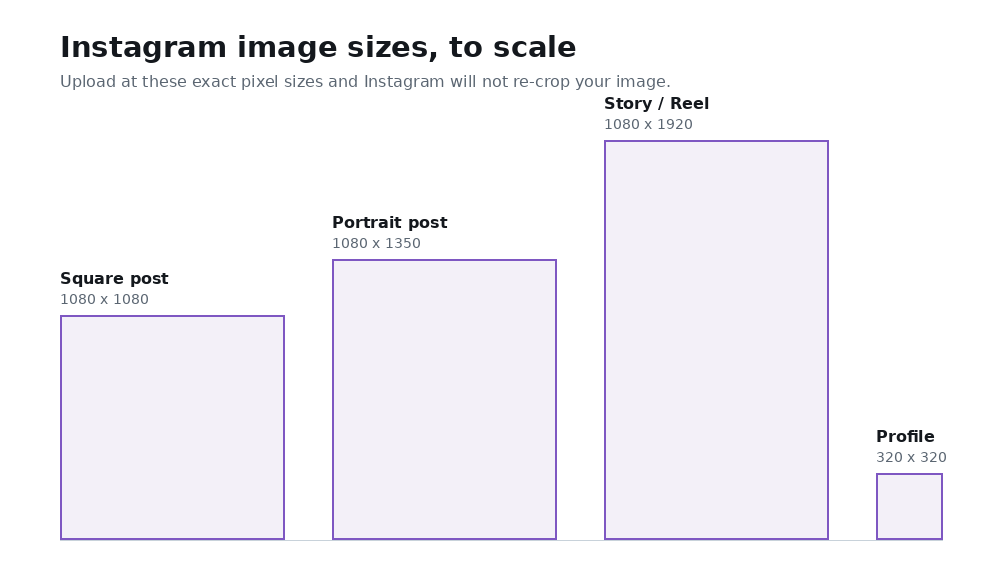
Instagram works with a width of 1080 pixels for all its main formats, and the height changes with the aspect ratio. A square post is 1080 x 1080 (1:1), a portrait post is 1080 x 1350 (4:5), and a full-screen story or reel is 1080 x 1920 (9:16). Portrait 4:5 posts take up the most vertical space in the feed, which is why many creators prefer them for reach.
Landscape posts use 1080 x 566 (1.91:1), and the profile picture is a square that displays as a circle. Uploading at these native resolutions avoids Instagram's re-compression and keeps your images looking crisp.
- Square post: 1080 x 1080 px (1:1)
- Portrait post: 1080 x 1350 px (4:5) - maximum feed height
- Landscape post: 1080 x 566 px (1.91:1)
- Story and reel: 1080 x 1920 px (9:16)
- Profile picture: square, displayed as a circle (min 320 x 320 px recommended)
Keeping stories and reels inside the safe zone
Stories and reels fill the whole screen at 1080 x 1920, but Instagram overlays interface elements on top of your image: the profile and close button at the top, and captions, links, and action buttons at the bottom. If you place important text or your subject in those areas it can get covered.
As a rule of thumb, keep essential content within the central portion of the frame, leaving roughly the top 250 px and bottom 250 px clear of anything critical. This keeps titles, faces, and calls to action visible no matter what interface Instagram layers on top.
- Story/reel canvas: 1080 x 1920 px
- Keep key content away from the top ~250 px (profile and close icons)
- Keep key content away from the bottom ~250 px (caption, link, and action buttons)
- Center titles, faces, and calls to action in the safe middle band
Common use cases
Resizing to native Instagram dimensions is useful for anyone posting regularly, from creators to small businesses. Preparing images at the right size before upload gives you consistent, professional-looking content and avoids the surprise of a bad auto-crop.
- Turning a landscape photo into a square or portrait feed post
- Preparing full-screen stories and reels from any source image
- Making a consistent grid where every post is the same shape
- Repurposing one photo into post, story, and reel versions
- Sizing product shots so nothing important gets cropped out
Why resize in the browser instead of an app
Most social resizing apps push your photos to a server, add a watermark, or gate features behind a subscription. imgbox does none of that: your images stay on your device, nothing is uploaded, and there is no watermark or account. That is faster and more private, and it keeps working even offline.
You also get precise control. Instead of accepting Instagram's automatic crop, you position the frame yourself and export at the exact native resolution, so the final post looks exactly the way you intended.
How to resize an image for Instagram
- Open the Instagram Image Resizer and load the photo you want to post.
- Choose the format you need: square post (1080 x 1080), portrait post (1080 x 1350), or story (1080 x 1920).
- Drag and zoom to position your subject inside the crop frame.
- For stories and reels, keep important content out of the top and bottom ~250 px safe zones.
- Export the image at the native 1080 px width so Instagram does not re-compress it.
- Download the file and upload it to your Instagram post or story.
Frequently Asked Questions
What size should an Instagram post be?
A square Instagram post is 1080 x 1080 pixels (1:1). A portrait post is 1080 x 1350 pixels (4:5), which takes up the most space in the feed, and a landscape post is 1080 x 566 pixels (1.91:1).
What size is an Instagram story?
An Instagram story or reel is 1080 x 1920 pixels, a 9:16 vertical aspect ratio that fills the whole screen. Keep important content away from the top and bottom of the frame so it is not covered by interface elements.
What is the best aspect ratio for Instagram posts?
The 4:5 portrait ratio (1080 x 1350) is generally best for feed posts because it occupies the most vertical space and stands out as people scroll. Square 1:1 (1080 x 1080) is the classic default and works everywhere.
Why does Instagram crop or blur my photos?
Instagram crops photos that do not match its supported aspect ratios and re-compresses images that are not at its native resolution. Resizing to 1080 px wide at the correct ratio before uploading prevents both problems.
What are the safe zones for an Instagram story?
On a 1080 x 1920 story, keep key text and subjects out of roughly the top 250 px and bottom 250 px, since Instagram overlays the profile icon, caption, link, and action buttons there. Center important content in the middle band.
Are my photos uploaded when I resize them?
No. imgbox resizes images entirely in your browser using Canvas and WebAssembly, so your photos never leave your device and no watermark is added.
Is the Instagram resizer free?
Yes. It is completely free with no account, no watermark, and no limits, so you can resize as many posts, stories, and reels as you like.
Can I resize one photo for both a post and a story?
Yes. Load the same photo, export it once as a 1080 x 1080 or 1080 x 1350 post, then re-crop and export again as a 1080 x 1920 story so it fits both formats cleanly.
Related tools
Related guides